
When it comes to 3D printing, choosing the right slicer software is crucial for high-quality prints. Bambu Studio Slicer and Creality Slicer are two popular options on the market, each with its own unique features and capabilities. In this comprehensive comparison, we take a closer look at the strengths and weaknesses of both slicers to help you make an informed decision for your 3D printing needs.
An overview of Bambu Studio Slicer features
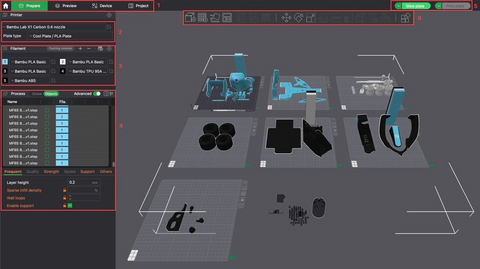
Bambu Studio Slicer, one of the top providers in the slicer software market, offers numerous impressive features that meet the needs of 3D printing enthusiasts.
User-friendly interface: Bambu Studio features an intuitive and easy-to-navigate user interface that is suitable for both beginners and experienced users. The clear layout ensures that users can find the tools they need quickly and easily.
Advanced slicing algorithms: At the heart of Bambu Studio are powerful slicing algorithms. These algorithms carefully analyze 3D models and generate precise toolpaths for printing. By optimizing layer heights, infill patterns, and support structures, Bambu Studio ensures high-quality prints with minimal material consumption and printing time.
Customizable support structures: Bambu Studio allows users to create custom support structures. Whether it's complex geometries, overhangs, or intricate designs, the software enables you to adapt support structures to your specific needs. Choose between tree-like support structures, standard support structures, and many other support types, all while maintaining stability during printing.
Multi-material printing: Bambu Studio is excellent for multi-material and multi-color printing. Assign different materials or colors to specific areas of your model.
Smart Rafting: Rafts play a crucial role in successful bed adhesion. Bambu Studio's Smart Rafting feature generates rafts intelligently based on the model geometry.
Layer preview and simulation: Take a virtual tour of every layer before printing. Bambu Studio offers a layer-by-layer preview that allows you to identify potential issues, evaluate infill patterns, and optimize settings. With the simulation feature, you can visualize the entire printing process.
Auto-orientation: Forget manual model positioning. Bambu Studio analyzes your model and suggests optimal orientations, taking into account factors like overhangs, support requirements, and print time.
Material profiles: Bambu Studio offers pre-configured material profiles for various filaments (PLA, ABS, PETG, TPU, and more). These profiles include recommended print temperatures, cooling settings, and other important parameters. Additionally, users can create custom profiles to optimize settings for specific materials.
Cloud service integration: Manage your projects seamlessly with Bambu Studio's cloud integration. Save your designs, collaborate with team members, and access your work from anywhere.
Continuous updates and support: The Bambu Studio development team is continuously working on improvements. Regular updates bring new features, bug fixes, and performance enhancements.
A closer look at the features of Creality Slicer
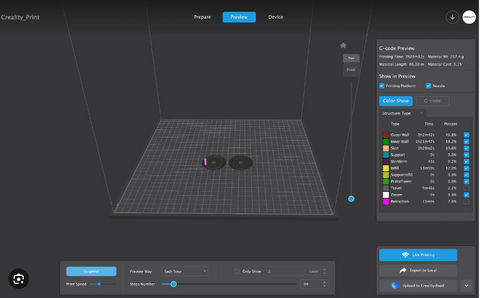
Creality Slicer is advertised as a user-friendly slicing program optimized for Creality printers. It offers a variety of features to help you prepare your 3D model for printing. These include slicer settings that allow you to adjust aspects of the printing process such as layer height, infill, and support structures, a preview of the print process to avoid errors, the creation of print profiles to save preferred slicer settings, and a marketplace that offers additional slicer functions via downloadable plugins.
Here are some of the key features of Creality Slicer:
Custom settings for Creality printers: Creality Slicer provides slicer settings that are specifically tuned for Creality printers. This ensures that your slicer settings are optimized for your Creality printer model, which can improve your print quality and success rate.
User-friendly interface: Creality Slicer has a user-friendly, clean, and well-structured interface. This makes it easier for beginners to get started with 3D printing and for experienced users to quickly find the settings they need.
Saving multiple printer profiles: Creality Slicer allows you to save multiple printer profiles. This is especially practical if you own multiple Creality printers or frequently print with different filament types or materials. Thanks to multiple profiles, you can quickly switch between different print settings without having to adjust them manually every time.
Extensive configuration options: Creality Slicer offers a wide range of configuration options, giving you a high degree of control over your prints. This allows you to optimize your prints to achieve the best results for your individual requirements. Adjustable settings include, among others, layer height, infill density, print temperature, and print speed.
Advanced features: Creality Slicer goes beyond basic slicing functions to offer advanced features that can be useful for experienced users. These features include "Fuzzy Skin" for a textured surface finish, "Wire Printing" for hollow prints with a wireframe exterior, and "Infill Travel Optimization" to reduce print time and filament waste.
Preview feature: With Creality Slicer's preview feature, you can visualize the print process before you click "Print." This is a valuable tool for checking your print for errors or potential issues before wasting time and filament on a failed print.
Marketplace for plugins: Creality Slicer has an integrated marketplace where you can download and install additional plugins. These plugins add new functionality to Creality Slicer, such as support for additional file formats or new slicing algorithms.
Compatibility with some non-Creality printers: Although primarily designed for Creality printers, Creality Slicer is also compatible with some non-Creality printers. This is a handy feature if you use both Creality and non-Creality printers in your 3D printing setup.
Choosing the right slicer
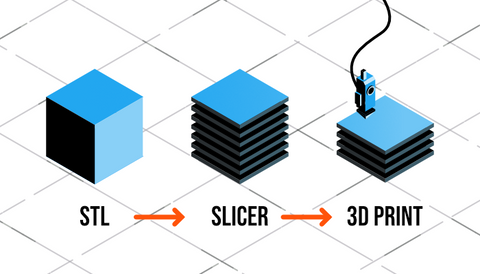
In summary, both Creality Slicer and Bambu Studio are valuable tools for 3D printing, but they cater to different user profiles. Creality Slicer excels with its beginner-friendly approach, optimized settings for Creality printers, and the unique marketplace for expanding functionality via downloadable plugins. This makes it a versatile and customizable slicer, especially for beginners and those using Creality printers.
Bambu Studio, on the other hand, is aimed at experienced users and those using Bambu printers. It offers a comprehensive range of advanced features for superior control over complex prints, as well as error-free G-code generation specifically optimized for Bambu printers. Cloud integration and ongoing updates also ensure a future-proof experience. Limitations, however, include restricted compatibility and the lack of a marketplace for plugin extensions.
So, which slicer is the best? That depends on your priorities. Creality Slicer is the clear winner for beginners and anyone already invested in the Creality printer ecosystem. For experienced users seeking top-tier features and perfect synergy with Bambu printers, Bambu Studio is the best choice. Consider additional factors such as cost and the open-source vs. closed-source nature to make the best possible decision for your 3D printing needs.
